Guide: How to Create, Edit, and Set an Image as Your Signature in Outlook
Vũ Khôi
Tác giả tại Wotech Electronics Blog
Guide: How to Create, Edit, and Set an Image as Your Signature in Outlook
Vũ Khôi
Author at Wotech Electronics Blog
Outlook, part of the Microsoft Office suite, is a great application that helps you send and receive email and schedule your work effectively, and it is now widely used by many businesses and individuals. Like Gmail, Outlook offers plenty of interesting email-related features — one of which is creating a signature.

A signature in Outlook is a signature placed after your Outlook emails, used to convey your identity, job title, and contact information. You can also add an optional email signature with linked images or your company logo. You can choose colors, fonts, and styling as you like by following the detailed steps below. The instructions for creating a signature in Outlook below apply to Outlook versions 2010, 2013, 2016, and 2019.
Why should you set up a signature in Outlook?
Creating a signature in Outlook brings the following great benefits:
-
If you are a Blogger building your personal brand, or you run an online business, an email signature plays a very important role. An Outlook signature acts like a business card, letting email recipients clearly see your key personal information such as your address, phone number, website, and the services you offer.
-
You can create an advertising banner right in your email signature to introduce new products or services — users simply click on the image or link to go to the page you want to promote.
-
It makes your emails look more professional in the eyes of partners and customers.
How to create a signature in Outlook
Here is a quick, extremely simple way to add a signature in Outlook:
Step 1: Click the Home tab on the toolbar.
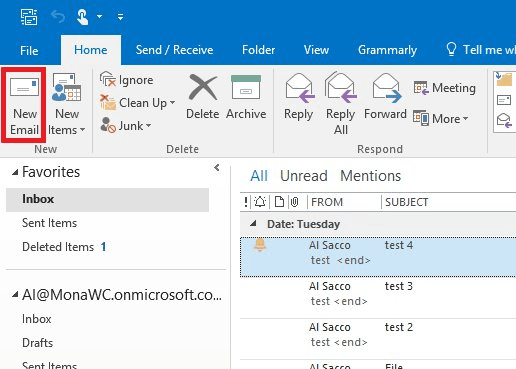
Step 2: Click New Email in the top-left corner of the screen.
Step 3: When the new message window appears, click Message, then select Signature under Include.
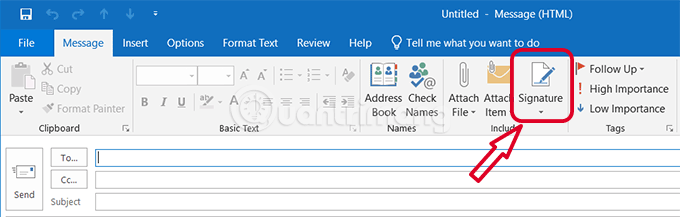
Step 4: Under Email signature, click New.
Step 5: Under Type a name for this signature, enter a name for your signature, then press OK.
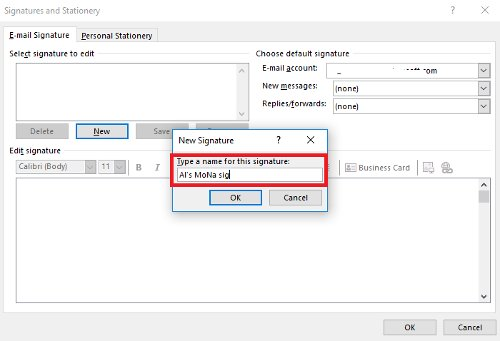
Step 7: On the screen, mark your signature's name under Select Signature to Edit.
Step 8: In the large empty box under Edit Signature, enter your name, job title, company name, phone number, email address, social media handles, or any other personal details you want to appear in your new signature.
Below Edit Signature are options for customizing formatting, font colors, and different typefaces. You can create styles and add rich borders to give your signature a distinctive look.
Step 9: Set preferences for New messages and Replies/Forward.
-
If you want to apply this signature to all new emails, select it from the New messages drop-down menu.
-
If you want to use the signature on replies or forwards, choose the signature in the Replies/Forward drop-down menu.
-
If you don't want to apply this signature to new messages, replies, or forwards, simply select (none) in the appropriate menu.
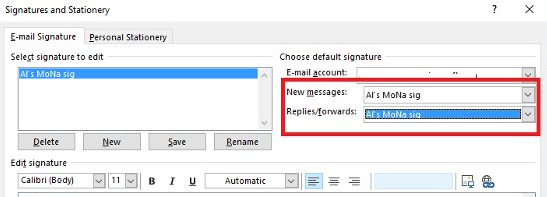
Step 10: Once you've finished setting everything up, click the Save button below.
Step 11: Finally, press OK in Signatures and Stationery to save the changes above.
When you open a new message, reply, or forward, the signature will automatically appear at the bottom.
How to insert an image into your signature in Outlook
To add an image to your signature in Outlook, simply follow these steps:
Step 1: Click Message on the Home tab, select Signature, then choose Signatures.
Step 2: Choose Select Signature and pick the signature where you need to insert a logo or image.
Step 3: Select the image you want to add, such as your company logo, position the cursor where the image should go, and click the Insert picture icon.
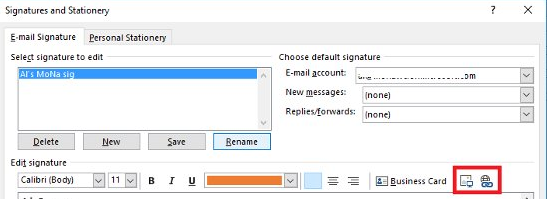
Step 4: Choose the image from a file on your computer and click Insert.
Step 5: To insert a website link into the image or logo — or into any text in your signature — highlight the image or text you want to link.
Step 6: With the image or text selected, click the Insert Hyperlink icon.
Step 7: When the new window appears, enter the full URL of the website in the last field. Then press OK.
How to change your signature in Outlook
While using Outlook, you may need to change your signature to suit different purposes. Here is a quick, extremely simple way to change your signature in Outlook!
Step 1: To go to Outlook's signature settings, click File on the toolbar.
Step 2: Once Outlook has switched to the File view, click Options in the File menu list.
Step 3: When the Options window appears over the Outlook interface, switch to the Mail section of that window.
Step 4: Click the Signatures button next to Create or modify signatures for messages in this section.
The Signatures and Stationery window will open, containing the settings for editing your signature.
Step 5: In the Select signature to edit list, you'll see all the signatures you've added to your Outlook account. Now select the signature you want to change.
Step 6: You'll see the contents of that signature displayed in the Edit signature section.
Now you can easily edit your signature. For example, you can change its characters, colors, or formatting, or insert additional images, logos, and links into it.
Step 7: Press OK after you finish editing to save the changes.
Step 8: Finally, click OK in the Outlook Options window to confirm the settings.
Conclusion
That was a detailed guide to setting up a signature in Outlook — you can easily follow the steps at home. If you have any questions, leave a comment below this article and SimERP will help you out quickly!
Related articles
Bài viết liên quan

25 tháng 10, 2026 · 3 phut doc
2024年网页设计趋势预测如何? | Wotech Electronics
关于 2024 年网页设计趋势——步入 2024 年,年初正是我们为新事物预留时间的时刻。这也非常适合设计师群体唤醒我们内心的"艺术之魂"。闲话不多说,快来和 Markdao 一起浏览 2024 年的 UX/UI 设计趋势吧,说不定您就能为自己接下来的网页设计项目"迸发"出一个绝妙的点子呢!

25 tháng 10, 2026 · 1 phut doc
什么是网站(Website)?网站的详细定义及其带来的商业价值
什么是网站(https://www.markdao.com.vn/blog/website-la-gi)——这个问题或许已经无需定义,因为在如今这个信息时代,网站对每一家企业而言都是不可或缺的组成部分。正是网站帮助用户更近距离地接触企业所提供的产品和服务,从而提升经营效益。此外,要在当今竞争如此激烈的环境中求发展,网站是一个重要因素,它将带你走向品牌与销量上的双重成功。
25 tháng 10, 2026 · 1 phut doc
什么是SEO标准网站?一场"打赢"Google SEO标准的战役 | Wotech Electronics
99%的用户在购买前会先搜索信息,73%的用户只会访问排名前10的网站,并认定它们是值得信赖的品牌……在数字营销爆发的时代,这些数字有力地印证了SEO标准网站的重要性。然而,许多人对什么是SEO标准网站(https://www.markdao.com.vn/blog/huong-dan-toi-uu-seo-website-chuan-seo-on-page)仍然相当模糊,并未真正理解。达到SE…