
How to Reduce Image File Size Without Reducing Quality? | Wotech Electronics
Vũ Khôi
Tác giả tại Wotech Electronics Blog
How to Reduce Image File Size Without Reducing Quality?
Vũ Khôi
Author at Wotech Electronics Blog
Software allows users to choose from many algorithms and techniques to reduce image file size on a computer, or to access free websites without downloading anything. To get started with reducing image file size, you first need to understand images — from the structure of the contents within an image — so that whichever file-size reduction method you use, you get results that match your intent. If you're looking for information on standard image sizes for the web, you can re-read this Markdao article to learn more. And if you've already found software but want a deeper understanding of why different tools vary in their ability to reduce image file size, this is exactly the article for you.
Understanding image size and the factors that make up quality
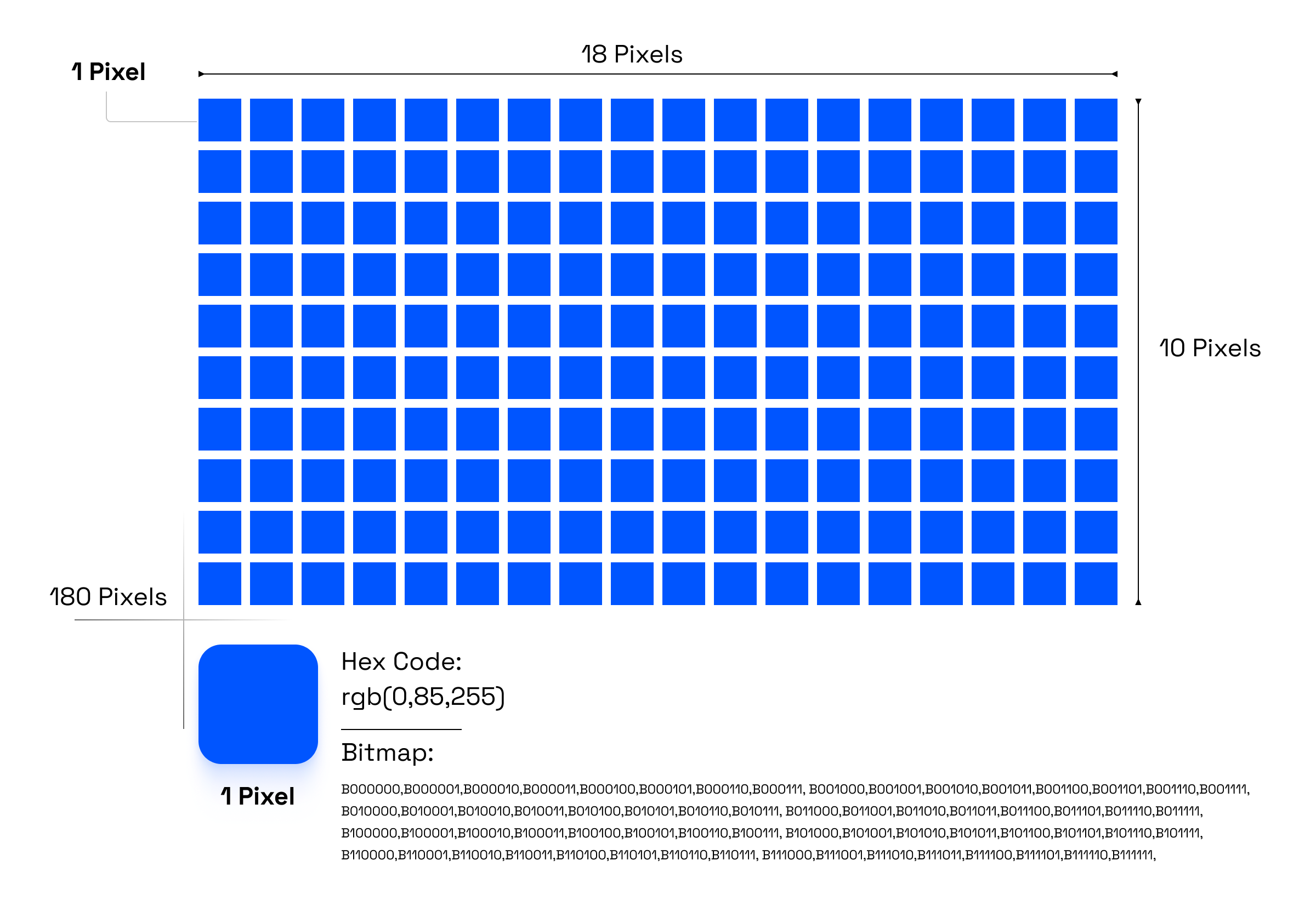
Images are stored on computers in BITMAP form — a digital storage method in which each pixel is defined by a numeric value code. A pixel can have a different color level depending on the number of bits allocated to it.
The width and height of a photo are measured in pixels; multiplying the total number of horizontal pixels by the total number of vertical pixels gives the total number of pixels in the image, so the longer and wider an image is, the larger its size. However, an image's file size doesn't stop at the information of each pixel — it also contains other information.
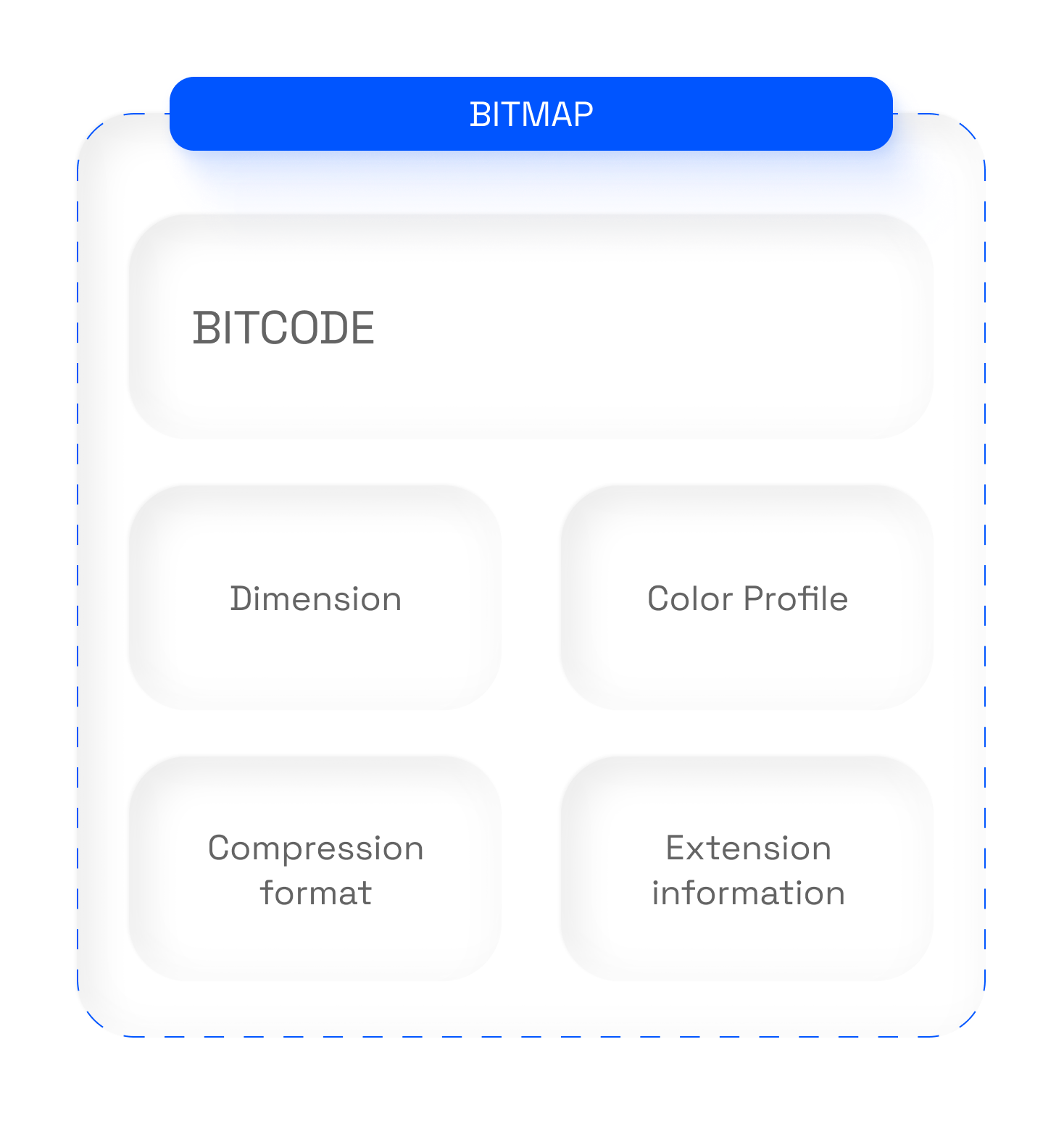
The components that make up the size of an image file
-
Image data: Each pixel of the image is represented by a specific color value. This data is organized as a matrix, where each value represents one pixel in the image.
-
Image dimension information: The width and height of the photo, and the total number of pixels it contains.
-
Color system information: For RGB images, information about how color is represented, including the number of bits used to represent each color channel (red, green, blue), and how each color value is encoded (such as 8-bit, 16-bit, 24-bit, or 32-bit per pixel). The higher the bits per pixel, the heavier the file, since there are more independent values in the image file.
-
File format information: Includes the headers and other descriptions of the BMP file structure, helping the computer understand how to read and display the image.
-
Supplementary data: There may be other additional data such as the file extension, the image's origin, or other metadata such as author, creation date, and other parameters.
Commonly used (BITMAP) image formats:
-
JPEG (Joint Photographic Experts Group): One of the most widely used formats for reducing image size. JPEG is typically used for images with complex colors, such as photos taken with digital cameras. This format is suitable for storing images in small files while keeping relatively high image quality.
-
PNG (Portable Network Graphics): PNG is an image format that is uncompressed or only lightly compressed, reducing file size without affecting the image's quality. PNG supports transparent or multi-layered images. It is often used for images that need to retain high quality, such as charts, icons, or images with transparency.
-
GIF (Graphics Interchange Format): GIF is a highly compressed image format used mainly for animations. It supports looping and transparency, and is often used for small animated images or web icons. However, GIF's drawback is its rather large file size for longer animations. To replace GIF, Airbnb launched Lottie Files, and Google launched WebP.
-
BMP (Bitmap Image File): BMP is an uncompressed format that stores the most complete BITMAP information, typically used to store images at high quality without compression. However, due to its large file size, BMP is not as widely used as JPEG or PNG.
-
TIFF (Tagged Image File Format): TIFF is an uncompressed or losslessly compressed image format, commonly used in applications that demand high quality, such as printing and professional graphics. TIFF supports multiple layers, color depth, and resolution, making it suitable for professional applications like Photoshop and Illustrator.
-
WEBP (Web Picture): This is a brand-new format created by Google recently, with a compression algorithm more efficient than PNG or JPG. It can cut file size by up to 50% compared to those two older relatives while still supporting transparency and animation, just like our old uncle GIF.
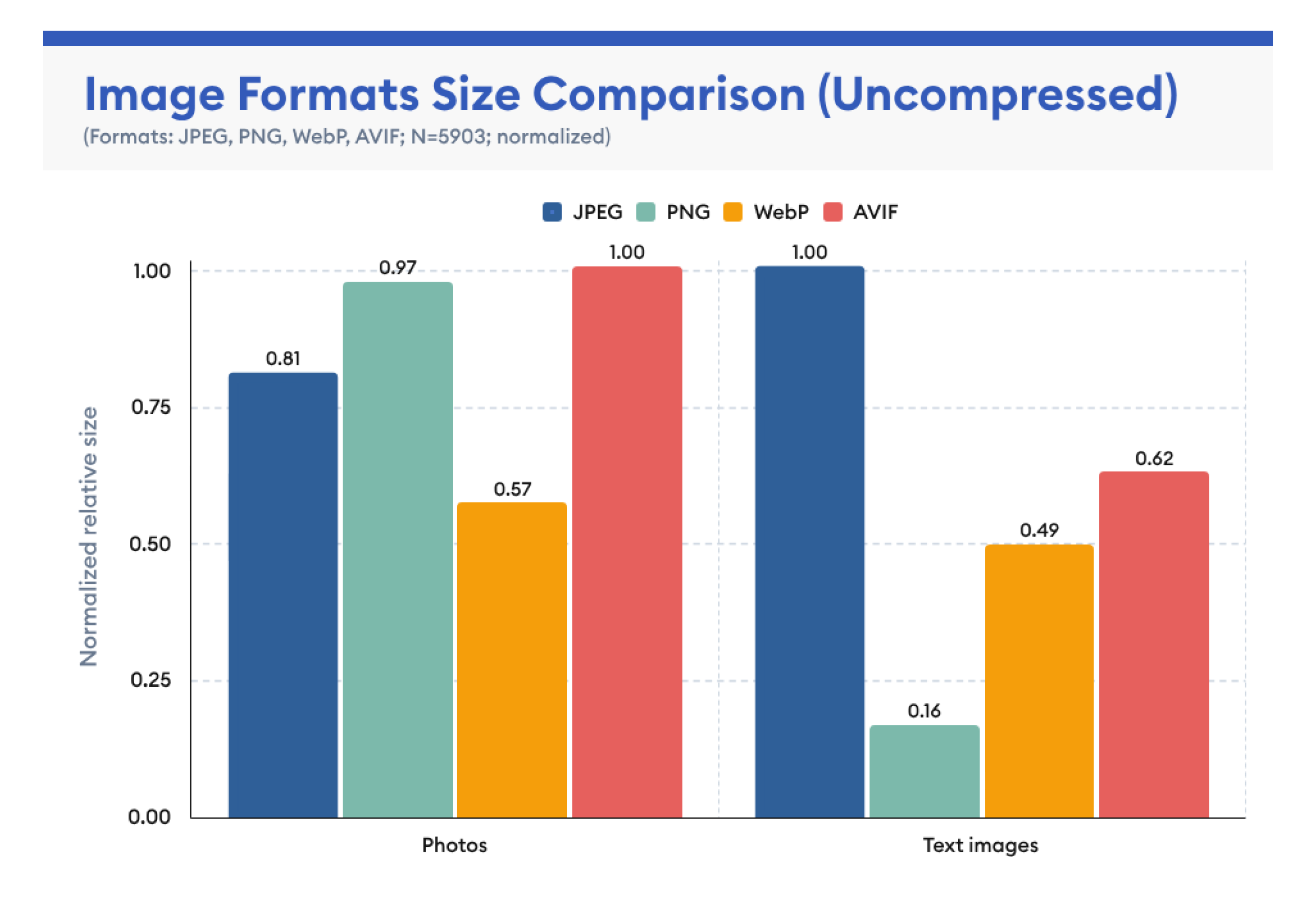
Recently, Google PageSpeed Insights has been constantly pestering users by asking them to switch to WebP for a higher score. However, WebP is not yet widely adopted, partly because operating systems still don't support viewing these images natively without third-party software.
To give you a panoramic view of these formats, Markdao will run a small experiment with images of identical dimensions, the same color system, and the same supplementary data — differing only in format — so you can see how much each compression optimization reduces image size and choose correctly before getting started.
Different color systems produce different image sizes
There are many popular color systems in the world; in this article Markdao only focuses on the color systems most commonly used on the Internet, and why different color systems change the size of an image file. First, let's go through the different color systems:
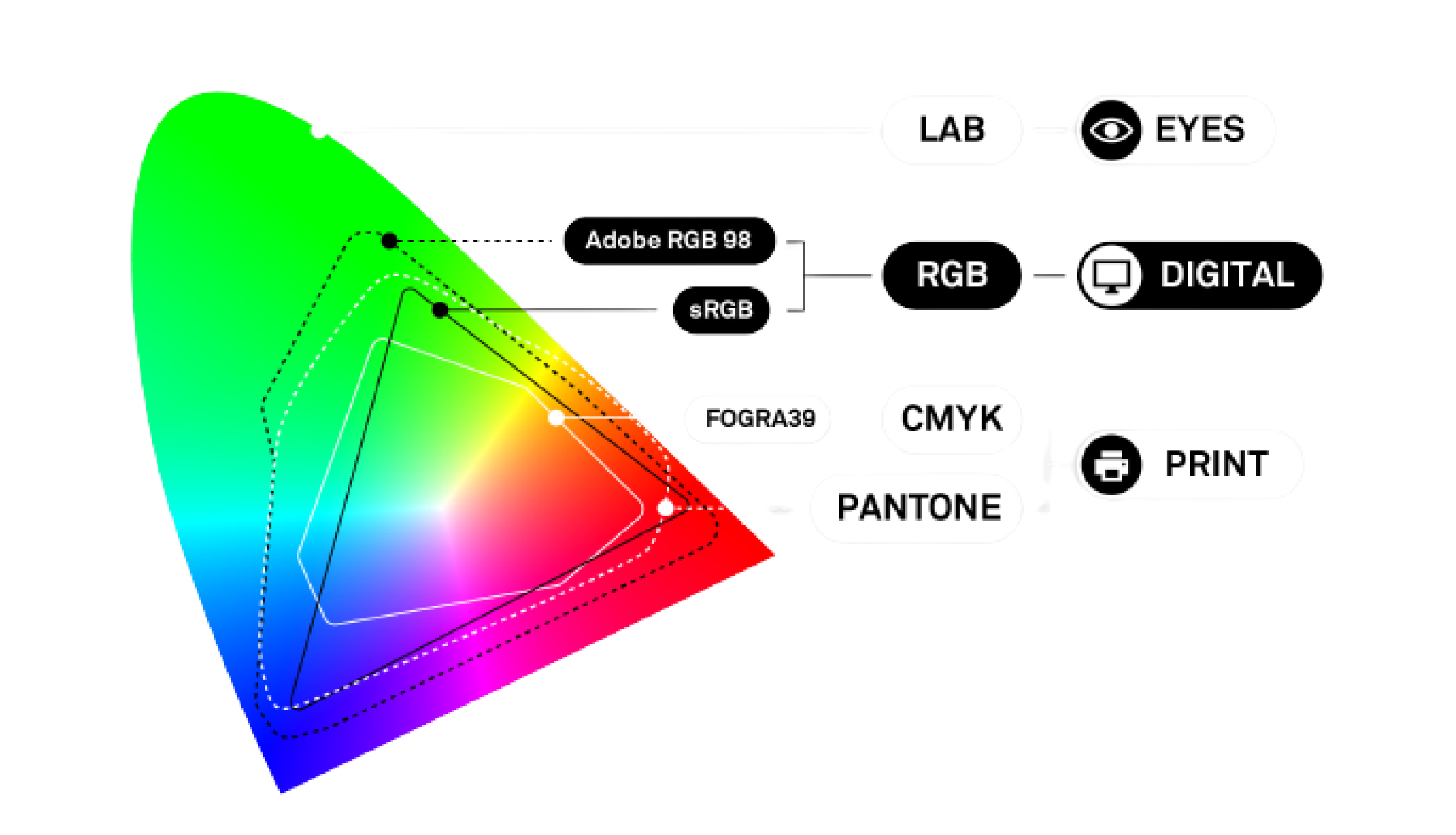
RGB color system: The RGB color system is used in digital environments including computer monitors, TVs, digital cameras, or any objects that can produce light in three colors: R for Red, G for Green, and B for Blue.
Combining the light intensity of these three colors produces the color assigned to that pixel. This part starts to get complicated, so stay focused. Each R, G, B channel contains 8 bits to represent the light intensity of each color; one pixel contains the light information of all three channels, so a pixel contains 8x3=24 bits.
That formula applies to sRGB, but Adobe RGB (an RGB color system created by Adobe that allows more faithful and vibrant colors than sRGB) contains 10 to 12 bits per R, G, B channel. So choosing Adobe RGB results in a larger image file than sRGB, but in return the image looks better.
CMYK color system: This is the most dreaded color system among designers because its colors are less vivid than RGB. CMYK's color gamut is narrower than RGB's, but conversely, CMYK is one of the few color systems that can be printed, whereas RGB cannot. CMYK stands for C: Cyan, M: Magenta, Y: Yellow, and K: Keys (also understood as the shade of black).
Like RGB, each C, M, Y, K channel contains 8 bits, but because it has 4 channels, a CMYK pixel contains a full 32 bits of information. So the CMYK color system is usually a bit heavier than RGB because it contains more information.
Grayscale: If your website has black-and-white photos, be quick-witted and change the image's bitmap to Grayscale to minimize file size. Grayscale has exactly 8 bits for the shade of black. So it's fair to say Grayscale is the simplest and lightest color system in the family. However, black and white is far less commonly used.
So, although this has been a bit long-winded, you now understand how an image is structured — in detail — for minimizing an image's file size. Sometimes you can reduce image size with a sensible width and height for each use case. Go further by choosing the format that fits your needs; whether jpg or png depends on whether you need a transparent background. And if you have time left over, switch to WebP to ensure the lightest, most beautiful image — keeping the godfather Google happy.
And to be even more refined: if you're a professional Designer proficient in Lightroom and Photoshop, you can even intervene in the color system to make sure nothing is left on the table — but in reality few people go this far, because reducing image size via the color system is "way too over the top, guys."

Ways to reduce image file size without reducing quality
As the title of this article says, Markdao won't dwell too much on specific software to be fair; we only recommend a few solutions, with software listed in order of priority, that you can try out to pick the best tool by your own judgment. Rest assured, in the next section Markdao will suggest some criteria for what makes a beautiful image.
So, there are many factors that can reduce an image's file size. Apply each criterion one at a time and blend them smoothly together, and you'll get the best result. So don't believe anyone who claims a single piece of software can do everything you need for image optimization.
Choose a suitable compression format to get the smallest image size
As presented above, if you use these images for a website or other internet purposes, first determine whether the image needs a transparent background. If you need transparency, prioritize WebP first, then PNG. But if a transparent background isn't needed, prioritize reducing jpg file size because it gives the best performance.
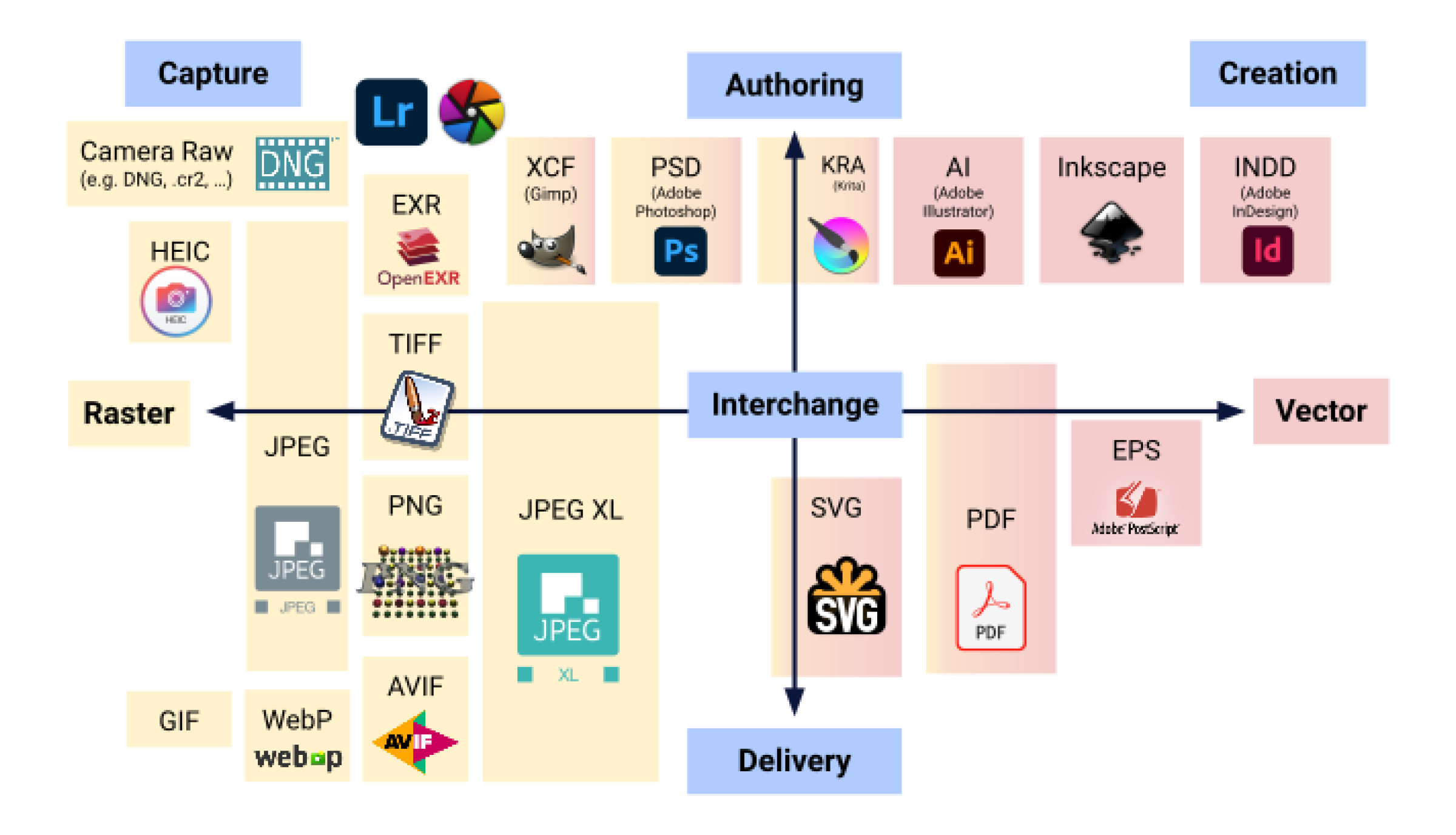
Software for changing compression formats
-
Adobe Photoshop: If you can afford it, this is the software for changing an image's compression format and choosing the most elite compression algorithm; you can customize the format and algorithm to your liking.
-
GIMP: GIMP is a free and open-source application similar to Photoshop. It also provides tools for changing format and compressing images with similar options.
-
IrfanView: A free image viewer and editor for Windows. Beyond viewing and editing images, IrfanView also lets you change formats and compress images.
-
XnConvert: XnConvert is a free, versatile image conversion tool for Windows, macOS, and Linux. It lets you change format, resize, and compress images with ease.
-
ImageOptim: ImageOptim is a free application for macOS that compresses images optimally and automatically strips unnecessary data to reduce file size.
-
Reduce jpg file size with TinyPNG / TinyJPG: A free online service that lets you compress PNG and JPEG images effectively without losing too much quality.
-
Online file-size reduction solution Squoosh: Squoosh is a web app developed by Google that lets you change format, compress, and optimize images online with customizable options.
Change the width and height of the image
This is the surest way to reduce an image's size, because the total number of pixels in the picture is significantly reduced. However, the reduction must be appropriate — don't be over-ambitious and shrink it so much that it becomes blurry and unusable. So how much reduction is reasonable? Depending on where the image will be placed, you should choose a suitable size.
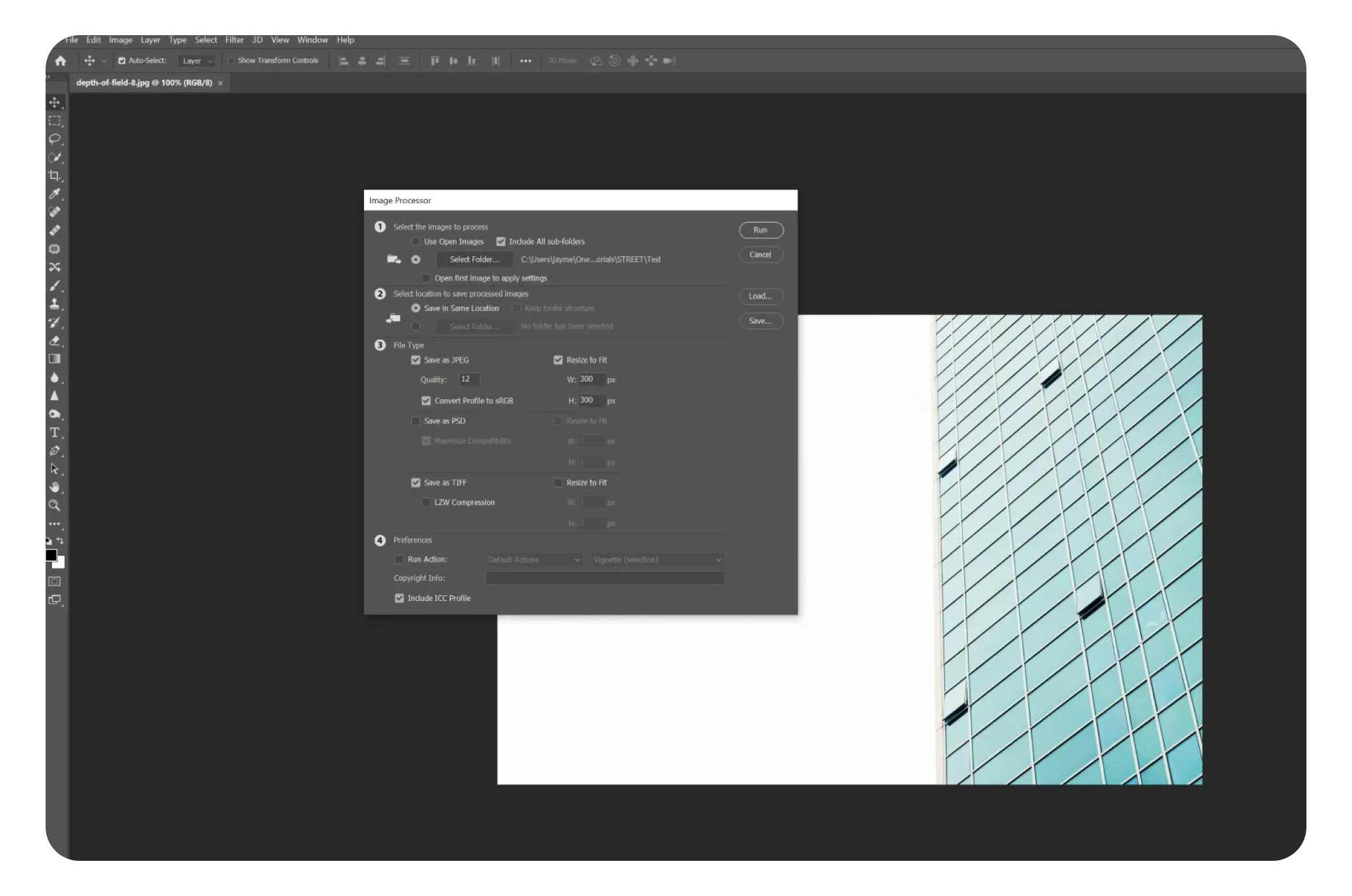
You can roughly estimate the ratio and then produce more precise figures. Usually we check how large the image will appear relative to the screen when viewed on a desktop, to choose appropriately. To do this, we need the pixel dimensions of the most common screen sizes:
-
Standard 27-inch desktop monitor: 2,500 pixels
-
24-inch desktop monitor: 1680 pixels ➝ 1920 pixels
-
Laptop screen: 1200 pixels ➝ 1920 pixels
-
Tablet screen: 720 pixels ➝ 1200 pixels
-
Smartphone screen: 350 pixels ➝ 720 pixels
From this data we can derive some reasonable size parameters for images on a website:
-
Full-screen desktop image: 2500 pixels wide
-
Image in the middle of the website, not full-bleed: 2000 pixels wide
-
Illustrative images for articles: 1680 pixels wide
-
Small thumbnail images for news articles: 720 pixels
With today's modern technology, when programming a website, we can select appropriate images for each different screen size, loading images with corresponding quality and dimensions so that page loading is fastest and most beautiful for each device. We do this at Markdao — if you're interested, just give us a call, hehe!
Popular software for resizing images:
-
Adobe Photoshop: Already mentioned, we won't say it again — we're not trying to shill.
-
GIMP
-
IrfanView
-
Canva
-
Photoscape
-
Preview (macOS)
Optimize the color format and remove unnecessary information
Images also contain a lot of information about the camera and shooting location, author, copyright, and more. If you'd like to know what's inside, search for the keyword "EXIF Photo Meta Data" — there you'll find the full set of information an image can contain. This part is very important because some EXIF data can amount to as much as 500Kb — no small figure.
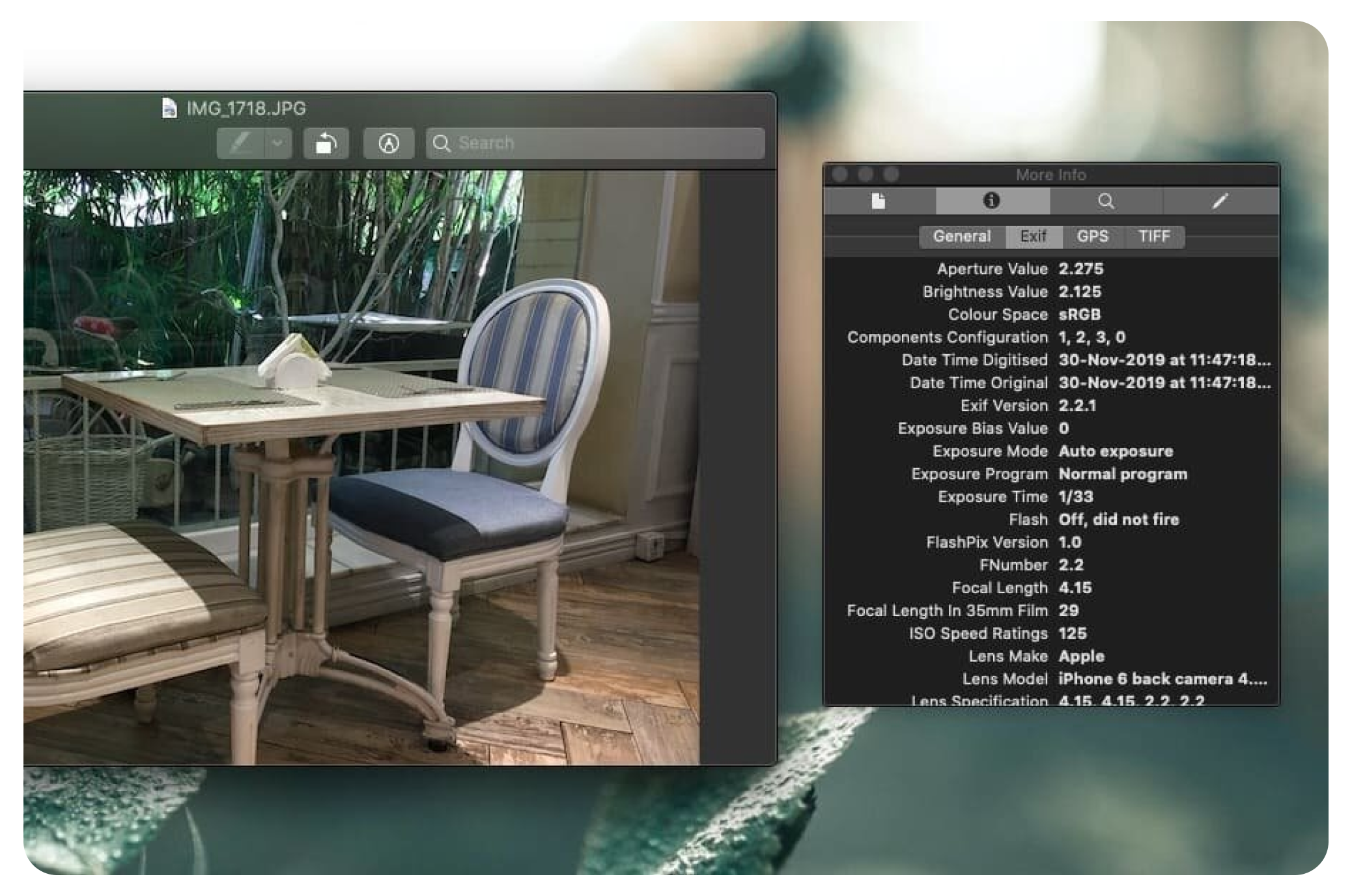
Here are some software tools that can remove EXIF data:
-
ExifTool: ExifTool is a powerful and flexible tool that lets you read, write, and edit an image's Exif data. Beyond removing Exif data, it also offers many other features for managing Exif data.
-
Exif Purge: Exif Purge is a simple, easy-to-use tool designed to remove Exif data from images. It has a simple graphical user interface and lets you process multiple images at once.
-
ImageOptim: ImageOptim is not only an image compression tool but can also remove Exif data. It automatically strips unnecessary information to reduce image size.
-
XnView: XnView is a free image viewer and manager for Windows, macOS, and Linux. It provides features for viewing and editing an image's Exif data, including removing it.
-
Photoscape: Photoscape is a free image editing software for Windows and macOS.
Reducing image size with Selective Compression is one of the most optimal solutions for preserving image detail
This is one of the more complex solutions, so not many mainstream software tools can do it. To understand it better, let's dig in: Selective Compression is a method in which the system selects unimportant areas to compress, while important parts are compressed less or keep their quality intact. Specifically, the method works like this:
-
Based on the color structure, pixels whose average colors in an area are nearly identical are grouped into an averaged BIT code system. Alternatively, it relies on the image structure or image content through AI or Machine Learning technology; most AI-powered image compression tools available today are paid and not widely available on the market.
-
The software then masks the areas where quality should not be reduced and applies compression to the parts outside the mask.
-
Texture and Detail Preservation: This method focuses on retaining important details and structures in the image during compression. Techniques such as adaptive quantization can be used to protect fine details.
-
Rate-Distortion Optimization (RDO): RDO is used to adjust the level of lossy compression based on the trade-off between quality and file size. Important areas can be preserved at a better compression level. If you use ImageOptim — one of the very good tools available today, though it only works on macOS — you'll see the RDO adjustment slider in the software.
Some software that compresses images using Selective Compression:
-
Adobe Photoshop
-
GIMP
-
JPEGmini
-
ImageOptim
-
Tiny PNG / Tiny JPG
-
Squoosh
-
RIOT
Summary of all the solutions for reducing image size while keeping quality
So, to sum up for those of you who only read conclusions and don't care about the process: the best image compression method is Selective Compression; you can use ImageOptim on macOS, or RIOT, to perform this task. However, before doing this final step, you must make sure that:
-
The image is in the correct required format
-
The image is using the most suitable and lightest color profile (Color Profile) possible
-
The image's width and height match your usage needs
-
If possible, you can remove EXIF data beforehand with dedicated software. If you use ImageOptim for selective compression, you don't need to remove EXIF data beforehand, since this software already handles it.
Thank you for following Markdao's article. It's a bit long, but we hope you now have all the knowledge you need — so when someone says "why is my image so heavy?", you can answer in a very scientific way. Once you get familiar with the steps we've outlined, this takes no time at all. Remember the final point: it doesn't matter which software; what matters is the method and which one is most convenient for you. Follow Markdao to receive more great, up-to-date articles compiled and written by our content team based on users' real needs.
Related articles
Bài viết liên quan
25 tháng 10, 2026 · 3 phut doc
2024年网页设计趋势预测如何? | Wotech Electronics
关于 2024 年网页设计趋势——步入 2024 年,年初正是我们为新事物预留时间的时刻。这也非常适合设计师群体唤醒我们内心的"艺术之魂"。闲话不多说,快来和 Markdao 一起浏览 2024 年的 UX/UI 设计趋势吧,说不定您就能为自己接下来的网页设计项目"迸发"出一个绝妙的点子呢!
25 tháng 10, 2026 · 1 phut doc
什么是网站(Website)?网站的详细定义及其带来的商业价值
什么是网站(https://www.markdao.com.vn/blog/website-la-gi)——这个问题或许已经无需定义,因为在如今这个信息时代,网站对每一家企业而言都是不可或缺的组成部分。正是网站帮助用户更近距离地接触企业所提供的产品和服务,从而提升经营效益。此外,要在当今竞争如此激烈的环境中求发展,网站是一个重要因素,它将带你走向品牌与销量上的双重成功。
25 tháng 10, 2026 · 1 phut doc
什么是SEO标准网站?一场"打赢"Google SEO标准的战役 | Wotech Electronics
99%的用户在购买前会先搜索信息,73%的用户只会访问排名前10的网站,并认定它们是值得信赖的品牌……在数字营销爆发的时代,这些数字有力地印证了SEO标准网站的重要性。然而,许多人对什么是SEO标准网站(https://www.markdao.com.vn/blog/huong-dan-toi-uu-seo-website-chuan-seo-on-page)仍然相当模糊,并未真正理解。达到SE…